Author Archives: admin

Benefits of the .org.zw Domain: A Vital Resource for Zimbabwean Organizations

Benefits of the .org.zw Domain: A Vital Resource for Zimbabwean Organizations

Benefits of the .org.zw Domain: Importance for Zimbabwean Organizations

The .org.zw domain is a crucial asset for non-profit organizations in Zimbabwe, significantly enhancing their online presence. The internet has transformed how these organizations connect with their communities. Choosing the right domain name is essential, and for Zimbabwean entities, the Zimbabwean .org domain serves as a significant identifier. This article explores the importance, benefits, and uses of the .org.zw domain.

What is the .org.zw Domain?

The .org.zw domain is a country-specific internet extension primarily used by organizations in Zimbabwe. The “.zw” signifies the country code for Zimbabwe, while “.org” indicates that the domain is typically reserved for non-profit organizations, foundations, cultural institutions, and educational services. Websites with the .org.zw extension focus on community service rather than commercial profit, aligning with the values of many local organizations.

Key Facts about .org.zw

The .org.zw domain is a country code top-level domain (ccTLD) specifically for Zimbabwe. Here are some key points:

  • Primarily for Non-Profits: While mainly used by non-profit entities, other organizations can also register.
  • Administered by POTRAZ: The Postal and Telecommunications Regulatory Authority of Zimbabwe (POTRAZ) oversees the domain’s management.
  • Introduced in 1991: The .zw domain has been promoting a Zimbabwean presence on the internet since its inception.

Benefits of Using a .org.zw Domain

Choosing a .org.zw domain comes with several advantages:

  • Local Identity: The .org.zw extension gives organizations a distinctly Zimbabwean identity, appealing to local audiences.
  • Credibility: Non-profits using this domain signal their commitment to community service, enhancing trustworthiness.
  • Localized Traffic: This domain indicates that an organization operates in Zimbabwe, attracting local visitors.
  • Increased Visibility: A .org.zw domain can help organizations connect with similar entities and foster collaboration.

Who Uses the .org.zw Domain?

The .org.zw domain is commonly used by various organizations in Zimbabwe, including:

  • Charities: Non-profits can showcase their missions and engage with donors.
  • Educational Institutions: Schools and universities can provide accessible information to students and parents.
  • Cultural and Religious Organizations: These groups can promote their values and connect with communities.
  • Businesses with Charitable Missions: Companies focused on social responsibility may choose this domain to highlight their values.

Additionally, the .org.zw domain is beneficial for individuals or groups running public awareness campaigns in Zimbabwe.

Conclusion

The .org.zw domain is more than just an internet address; it symbolizes a commitment to community service in Zimbabwe. By choosing this domain, organizations can enhance their credibility, connect with local stakeholders, and foster collaboration. As the digital landscape evolves, the .org.zw extension remains a vital resource for those making a meaningful impact in their communities.

For more information on domain registration and management, visit Credible Host.

Understanding Web Hosting Control Panels: A Focus on cPanel and Credible.Host

Understanding Web Hosting Control Panels: A Focus on cPanel and Credible.Host

Understanding Web Hosting Control Panels: The Role of cPanel

When it comes to managing a web hosting account, understanding web hosting control panels is essential, especially for those utilizing cPanel hosting. A robust control panel simplifies the management of websites, domains, and server settings, making it easier for users to handle their hosting needs. One of the most popular control panels in the industry is cPanel, and it plays a significant role in the offerings of Credible.Host.

What is cPanel?

cPanel is a web-based control panel that allows users to manage their websites and hosting accounts easily. With its intuitive interface, cPanel provides a range of tools for both novice and experienced users. From managing domains and email accounts to installing applications and monitoring site performance, cPanel is designed to streamline web hosting management. Learn more about cPanel here.

Key Features of cPanel

  1. User-Friendly Interface
    • cPanel offers an easy-to-navigate dashboard, making it simple for users to find the tools they need. This user-friendly design is especially beneficial for those new to web hosting.
  2. Domain Management
    • Users can manage multiple domains from a single cPanel account. This includes adding new domains, subdomains, and managing DNS settings, all in one place.
  3. Email Management
    • cPanel allows users to create and manage email accounts associated with their domains. Features include spam filters, autoresponders, and email forwarding.
  4. One-Click Software Installers
    • cPanel includes tools like Softaculous that enable users to install popular applications (such as WordPress, Joomla, and Magento) with just a single click.
  5. File Management
    • The built-in File Manager allows users to upload, edit, and organize their website files directly from the cPanel interface.
  6. Backup Solutions
    • cPanel provides options for creating full backups of your website, ensuring that your data is secure and can be restored if needed.

Why Choose Credible.Host for cPanel Hosting?

Credible.Host incorporates Web Hosting Control Panel into its hosting solutions, making it an excellent choice for anyone looking to manage their web hosting account efficiently. Here are some reasons why Credible.Host stands out:

  1. Affordable Plans
    • Credible.Host offers competitive pricing for its hosting packages, ensuring that you get the best value for your investment in cPanel hosting. Explore pricing options here.
  2. 24/7 Customer Support
    • With round-the-clock support, Credible.Host ensures that you have access to expert assistance whenever you need it. Whether you have questions about cPanel features or need help with your hosting account, their support team is ready to assist. Contact support here.
  3. Scalability
    • As your website grows, you may need additional resources. Credible.Host provides scalable hosting solutions, allowing you to upgrade your plan easily without disruption.
  4. Robust Security Features
    • Security is a top priority at Credible.Host. With cPanel, you benefit from enhanced security measures, including SSL certificates and regular backups, ensuring your website remains safe.
  5. Easy Migration
    • Moving your existing website to Credible.Host is hassle-free with their migration services. They assist you in transferring your files, databases, and emails, ensuring a smooth transition.

Conclusion

A reliable control panel is crucial for effective web hosting management, and cPanel stands out as a leading choice for many users. With its user-friendly interface and powerful features, cPanel makes it easy to manage all aspects of your hosting account.

By choosing Credible.Host for your cPanel hosting needs, you gain access to affordable plans, excellent customer support, and robust security features. Whether you are a beginner or an experienced web developer, Credible.Host combined with cPanel provides the tools you need to succeed online.

Unlock the full potential of your web hosting experience with Credible.Host and cPanel today! Get started now.

Unlocking the Power of Credible.Host: Your Ultimate Guide to Reliable Web Hosting

Unlocking the Power of Credible.Host: Your Ultimate Guide to Reliable Web Hosting

In today’s digital landscape, unlocking the power of Credible.Host is crucial for businesses and individuals alike. With its robust web hosting services, unlocking the power of Credible.Host ensures reliable and efficient hosting solutions that stand out as premier options for users. This guide will help you understand the features, benefits, and unique offerings of Credible.Host

What is Credible.Host?

Credible.Host web hosting is a top web hosting provider that offers a variety of services to meet the diverse needs of its users. From small blogs to large e-commerce sites, Credible.Host provides scalable solutions that ensure your website runs smoothly.

Key Features of Credible.Host

  1. Reliable Uptime
    • Credible.Host guarantees an impressive uptime of 99.9%, ensuring your website is always accessible. This reliability is crucial for maintaining customer trust and improving search engine rankings.
  2. Speed Optimization
    • With advanced caching and optimized server configurations, Credible.Host provides fast load times. Fast websites enhance user experience and positively impact SEO.
  3. User-Friendly Control Panel
    • The intuitive control panel makes managing your hosting account easy, even for beginners. Users can effortlessly set up domains, manage emails, and install applications with just a few clicks.
  4. 24/7 Customer Support
    • Credible.Host offers around-the-clock customer support via live chat, email, and phone. Their knowledgeable support team is ready to assist with any technical issues.
  5. Scalability
    • As your business grows, so do your hosting needs. Credible.Host provides scalable solutions that allow you to upgrade your plan seamlessly without downtime.

Benefits of Choosing Credible.Host

  • Affordable Plans
    • Credible.Host offers competitive pricing without compromising quality, making it an attractive option for startups and established businesses.
  • Enhanced Security Features
    • With SSL certificates, daily backups, and advanced firewalls, Credible.Host prioritizes website security. These features protect your data and build trust with your audience. Learn more about website security here.
  • Eco-Friendly Hosting
    • Credible.Host is committed to sustainability, using energy-efficient servers and eco-friendly practices. Choosing Credible.Host benefits your business and contributes to a healthier planet.

Why SEO Matters in Web Hosting

When selecting a web hosting provider, SEO should be a key consideration. A reliable hosting service like Credible.Host can significantly impact your search engine ranking. Here’s how:

  • Reduced Bounce Rates: Fast loading times keep visitors on your site longer.
  • Better User Experience: Reliable hosting ensures your site is always up, enhancing user engagement.
  • Search Engine Trust: Search engines prioritize sites with high uptime and fast load times, boosting your SEO efforts.

Conclusion

In the competitive world of web hosting, Credible.Host is an excellent choice for anyone seeking reliability, speed, and exceptional customer support. With features designed to optimize performance and enhance security, Credible.Host web hosting is well-equipped to meet your hosting needs.

Whether you’re a blogger, a small business owner, or managing a large e-commerce site, Credible.Host has the tools and support to help you succeed online. Unlock the full potential of your online presence with Credible.Host today!

Secure and Reliable .co.zw Domain Registration with Credible Host

Secure and Reliable .co.zw Domain Registration with Credible Host

Establish a significant digital footprint in Zimbabwe with a .co.zw domain. This country code top-level domain (ccTLD) is essential for anyone aiming to build a strong online presence in Zimbabwe. Managed by the Postal and Telecommunications Regulatory Authority of Zimbabwe (POTRAZ), it ensures that all registrations are compliant and legitimate.

Choosing a Dependable Hosting Provider

When registering a .co.zw domain, the choice of hosting provider is crucial. Your provider supports your website’s online infrastructure and technology needs. Credible Hosting stands out as a top choice in Zimbabwe for reliable and secure hosting services. With more than a decade of experience, Credible Hosting offers shared hosting, VPS hosting, and dedicated hosting options tailored to diverse business needs.

Benefits of Choosing Credible Hosting

  1. Enhanced Security: Credible Hosting protects your online presence with state-of-the-art security technologies. Regular data backups ensure your website’s data is always safe and recoverable in case of any cyber threats.
  2. Exceptional Customer Support: Credible Hosting provides around-the-clock customer support. Our team of skilled professionals is ready to assist you anytime. Additionally, our comprehensive knowledge base and forums are great resources for troubleshooting and learning more about web management.
  3. Proven Reliability: Trusted by numerous Zimbabwean businesses, Credible Hosting guarantees optimal website performance and uptime. Our track record for reliability helps keep your online operations smooth and efficient.

Get Started Today

Opting for Credible Hosting ensures that your .co.zw domain is secure, reliable, and performs excellently according to your expectations. We deploy advanced security protocols to safeguard your digital assets and maintain robust infrastructure for optimal website performance.

Ready to Boost Your Online Presence?

Visit Credible Hosting today. Partner with us, and let’s work together to enhance your success online. With Credible Hosting, you’re not just hosting a website, but you are building a foundation for future growth of your business.

Learn how to register a .co.zw domain with Credible Host:

Learn how to register a .co.zw domain with Credible Host:

To register a .co.zw domain with Credible Host, follow these simple steps:

  1. Visit Credible Host’s Website: Start by navigating to the official Credible Host website. Look for the “Register a New Domain” option under the store or services section. This step is crucial for establishing your online presence.
  2. Search for Your Domain: Use the domain search tool on the website to check if your desired .co.zw domain name is available.
  3. Select Your Domain: Once you confirm that your domain is available, select it. You’ll need to enter your personal information and set up a billing address during this step, which is necessary for domain registration.
  4. Create an Account: If you don’t already have an account with Credible Host, you’ll need to create one. This involves providing personal details and setting up your login credentials.
  5. Choose a Hosting Plan: Credible Host offers various hosting plans, from shared hosting to VPS servers. Select a hosting plan that meets your needs to ensure your website is properly supported.
  6. Make Payment: Complete the registration by making a payment. Credible Host accepts multiple payment methods, including credit cards and local payment platforms like Ecocash, Innbucks, PayPal, and Pesepay.
  7. Confirmation: After payment, you’ll receive a confirmation of your domain registration. Consider setting up additional services, such as email or SSL certificates, to enhance your website’s functionality and security.

For detailed instructions and to begin the registration process, visit Credible Host’s domain registration page. We are also available via WhatsApp to assist you with the process.

To ensure a smooth and successful registration process, it’s important to prepare beforehand. Before starting the registration, take some time to brainstorm potential domain names that reflect your brand or business. Remember that your domain name is a critical part of your online identity, so choose one that is memorable and easy to spell.
How to register.co.zw domain names in Zimbabwe

How to register.co.zw domain names in Zimbabwe

The .co.zw domain name is a country code top-level domain (ccTLD) specific to Zimbabwe. It’s ideal for businesses, organizations, and individuals who want to establish an online presence in Zimbabwe. The Postal and Telecommunications Regulatory Authority of Zimbabwe (POTRAZ) manages the .co.zw domain. They ensure all registered domain names are legitimate and comply with their rules and regulations.

When you register a .co.zw domain name, it’s crucial to choose a credible hosting provider. A hosting provider offers the technology and infrastructure needed to host your website on the Internet. Your choice of hosting provider can significantly impact your website’s performance and security.

Credible Hosting is one of the top choices for hosting .co.zw domain names. Based in Zimbabwe, Credible Hosting provides a range of hosting services, including shared hosting, VPS hosting, and dedicated hosting. With over a decade of experience, Credible Hosting has earned a solid reputation for reliability and security.

One major advantage of using Credible Hosting is its commitment to security. The company uses the latest security technologies to protect servers and customer data from cyber threats. They also perform regular backups to keep your data safe.

Another benefit of choosing Credible Hosting is its excellent customer support. Their experienced support team is available 24/7 to help with any issues. They also provide a knowledge base and support forum, making it easy for you to find solutions to common problems and learn more about hosting and website management.

In conclusion, the .co.zw domain name is a vital tool for anyone looking to establish an online presence in Zimbabwe. Choosing a credible hosting provider like Credible Hosting ensures your website remains secure, reliable, and performs at its best. With their focus on security and customer support, Credible Hosting is an excellent choice for registering a .co.zw domain name.

To get started, click here to begin the registration process.

How to install a WordPress plugin?

How to install a WordPress plugin?

Do you want to know how to install a WordPress plugin? After installing WordPress, one of the first things everyone wants to do is add a plugin to WordPress.

In this guide, we’ll show you three pre-checks, followed by three ways of installing a plugin.

IN THIS GUIDE:

A quick note before we start: WordPress.com users cannot install plugins unless they upgrade to the Business or Ecommerce plans. Check out this article to see the differences between WordPress.com and WordPress.org.

What is a WordPress Plugin?

WordPress plugins are additional software programs that extend and expand the core functionality of WordPress.

The scope of WordPress plugins is far-ranging. Some are small, simple programs, while others are larger and more intricate.

The scope of WordPress plugins varies significantly. For example, you can find free, simple plugins, such as:

And then, on the other hand, there are more advanced premium plugins, such as:

  • MonsterInsights – lets you track Google Analytics inside WordPress.
  • RafflePress – allows you to create giveaways, contests, and rewards easily.
  • Yoast SEO – helps optimize your WordPress blog for search engines.

Free plugins can be found in the WordPress Plugin Directory. Whereas premium plugins have to be purchased from the software vendor’s website.

3 Things to Check Before You Install a Plugin

3 Things to Check Before You Install a Plugin

Before you install a plugin on your WordPress blog, there are a few things to check to ensure that you’re choosing the right one.

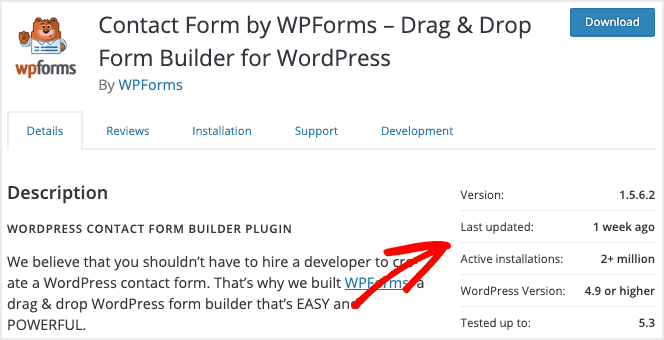
You can find this information within the WordPress Directory alongside the plugin you want to install. For example, here are the details for the WPForms Drag & Drop Form Builder plugin:

wpforms-example 3 Things to Check Before You Install a Plugin

#1 – When was it last updated?

If it’s been more than a few months since the plugin’s last update, it might not be safe to install. Plugins need updating to remain secure and compatible with the latest version of WordPress.

In our example, you can see WPForms was recently updated 1 week ago.

#2 – What version is it compatible with?

Check which version of WordPress the plugin needs to function correctly and whether it matches the version of WordPress you have installed?

In our example, you can see Akismet needs WordPress version 4.0 or higher.

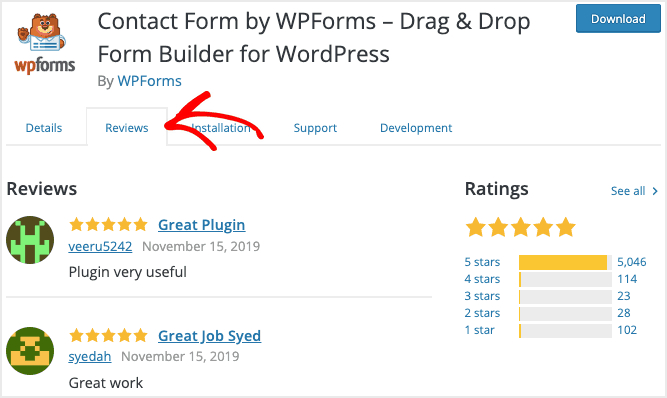
#3 – Does it have good ratings and reviews?

Make sure you read the reviews and ratings to see what people are saying. Sometimes you’ll find information that you may not have considered.

wpforms-reviews 3 Things to Check Before You Install a Plugin

In our example, you can see that WPForms has passed the 5,000 5-star review ratings.

You’ll find most plugins are safe to use, especially the premium versions. But these few pre-checks ensure you don’t install something on your blog that you don’t want.

Feel free to contact us in case you need some advice and guidance on issues that might confuse you.

Our support team is ready to help you getting started.

How to Install a WordPress Plugin via the Admin Dashboard

How to Install a WordPress Plugin via the Admin Dashboard

How to Install a WordPress Plugin via the Admin Dashboard

The easiest way of installing a free WordPress plugin is via your Admin Dashboard. This option connects to the WordPress Plugin Directory, which is restricted to free plugins.

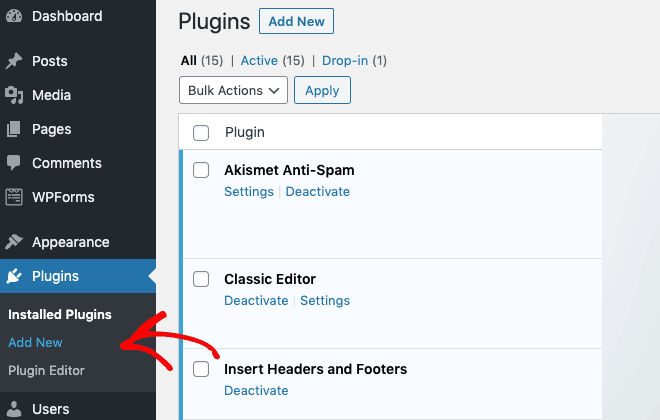
First, go to your WordPress Admin Dashboard and click on Plugins > Add New:

plugin-add-new How to Install a WordPress Plugin via the Admin Dashboard

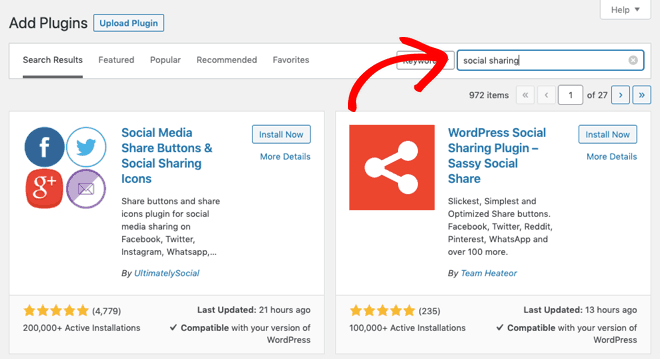
On the next page, you can find a plugin either by entering its name or the functionality you want. For example, you might want a “social sharing” plugin:

plugin-search How to Install a WordPress Plugin via the Admin Dashboard

After that, you will see all the relevant plugins listed.

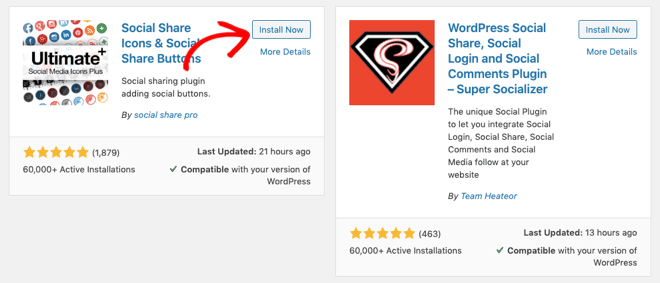
There’s an option to view more details about each plugin if you need to check. When you’ve decided on the plugin you want, click the Install Now button:

plugin-install-now-1 How to Install a WordPress Plugin via the Admin Dashboard

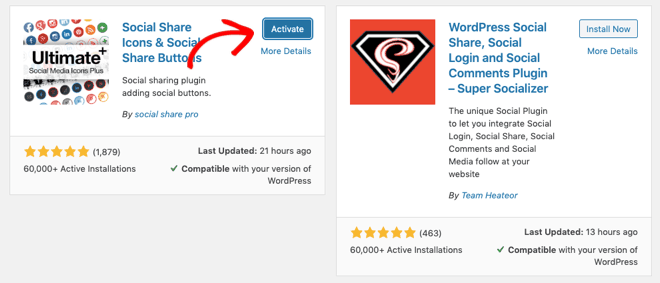
WordPress will now install the plugin for you. Once it’s completed, you’ll see the Install Now button changes to Activate:

plugin-activate-1 How to Install a WordPress Plugin via the Admin Dashboard

Although the plugin is installed, you have to activate it to make it function, so click on the Activate button.

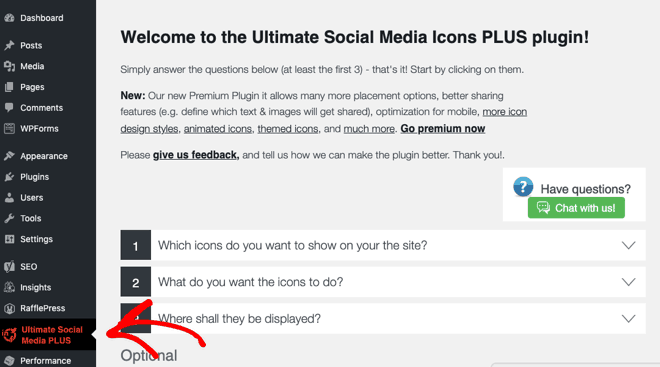
Now, in your Admin Dashboard, you should see a welcome screen for the new plugin:

plugin-welcome-1 How to Install a WordPress Plugin via the Admin Dashboard

You may have to enter some more details to complete the setup, so follow the on-screen instructions. You’ll see a new menu option for the plugin on the left-hand side.

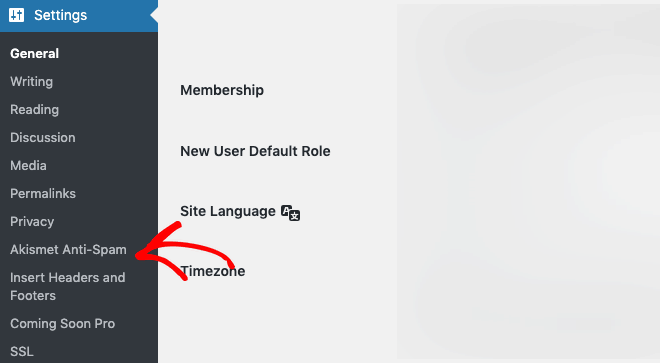
Note: Sometimes, the plugin gets added to an existing menu. For example, you’ll find Akismet in the Settings menu:

plugin-menus How to Install a WordPress Plugin via the Admin Dashboard

And that’s it! You’ve installed and activated a free WordPress plugin.

Let us know if you have liked our post. Also, feel free to hit the share button and share with your friends on your favorite social network platform.

To learn how to install a WordPress plugin, follow these simple steps. First, log in to your WordPress dashboard. Next, navigate to the “Plugins” menu and click “Add New.” You can search for the desired plugin in the search bar, or upload a plugin you have downloaded. Once you find the plugin, click “Install Now” and then activate it. Installing WordPress plugins is an easy way to add functionality to your site, enhancing its performance and features with just a few clicks.

Install a Premium WordPress Plugin

Install a Premium WordPress Plugin

Steps to Upload Your Premium Plugin Easily

Install a Premium WordPress Plugin: A Complete Guide. Premium plugins that are not listed in the WordPress Plugin Directory. You’ll most likely purchase a premium plugin from the vendor’s website or a third-party marketplace.

Once you’ve purchased a premium plugin, you download the software in a ZIP file to your computer.

Note: You can also download free plugins from the WordPress Directory and install them using this option. But the first option is the easiest method.

Now, you need to upload your plugin to WordPress.

First, go to your WordPress Admin Dashboard and click on Plugins > Add New:

plugin-add

At the top of the next page, click on the Upload Plugin button:

plugin

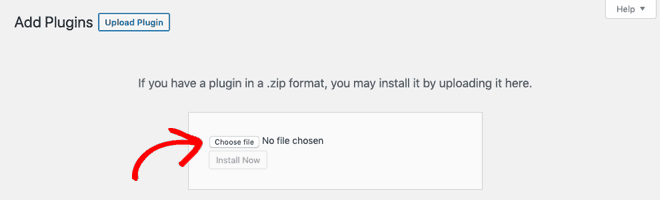
Next, click on the Choose File button and select the plugin ZIP file you downloaded to your computer previously:

plugin-choose-file Install a Premium WordPress Plugin

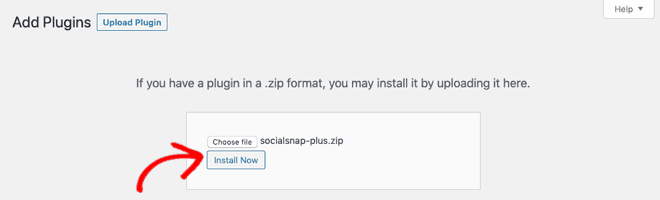
Once you’ve located your file, click on the Install Now button:

plugin-install-now-2 Install a Premium WordPress Plugin

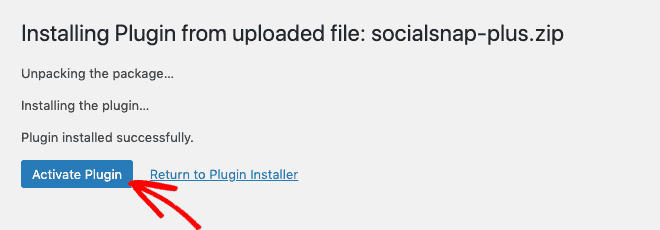
WordPress will now upload and install the plugin for you.

Once it’s completed, you’ll see the success message with an Activate Plugin button or Return to Plugin Installer link. Although the plugin is installed, you have to activate it to make it function, so click the Activate Plugin button:

plugin-activate-2 Install a Premium WordPress Plugin

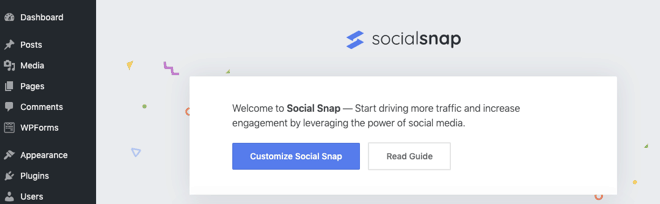
Now, in your Admin Dashboard, you should see a welcome screen for the new plugin:

plugin-welcome-2 Install a Premium WordPress Plugin

You may have to enter some more details, including a license key, to finish the setup, so follow the on-screen instructions. You’ll also find a new option for the plugin in the left-hand side menu.

And that’s it! You’ve installed and activated a premium WordPress plugin.

BACK TO THE TOP

Option 2 – Manual Installation via FTP: A Backup Method

Sometimes it may not be possible to use the previous options, for example when your WordPress hosting provider has file restrictions or doesn’t allow automatic installations. In this case, you’ll need to install your WordPress plugin manually using FTP.

First, you need to download the plugin as a ZIP file to your computer. Then, you need to extract the ZIP file on your computer.

Extracting the ZIP file will create a new folder that you’ll need to upload to your website manually using an FTP client.

For the next step, you’ll need your FTP username and password. For reliable hosting solutions, check out Credible Host. We will be able to provide these details if you don’t have them on hand.

Open the FTP client on your computer and connect to your server using the login credentials provided by your web host.

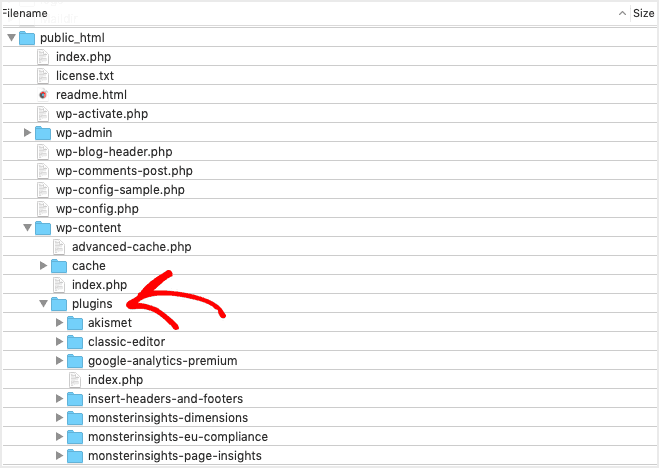
Once connected, you need to find the path /wp-content/plugins/:

wp-content

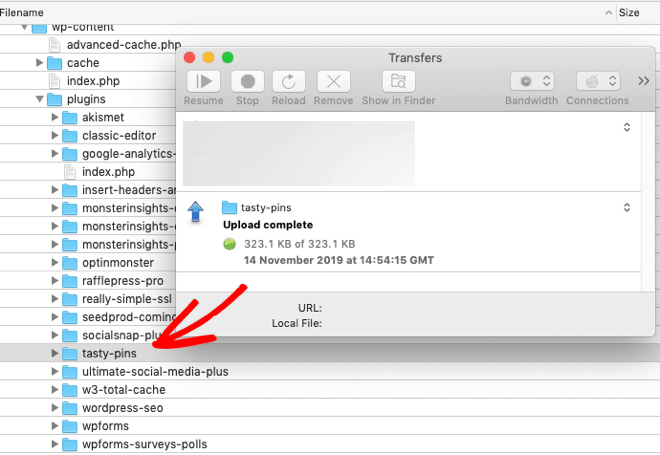
Next, upload the plugin folder you extracted from the ZIP file to the /wp-content/plugins/ folder on your web server:

Premium WordPress Plugin

After uploading the plugin folder, you need to check if it installed ok.

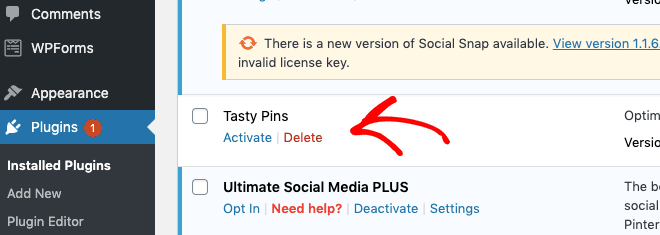
In your WordPress Admin Dashboard, click on Plugins in the left-hand menu, and you should see your new plugin successfully installed on the plugins page:

plugin-check

Finally, you need to click on the Activate link below the plugin. Once it’s activated, you may have to enter some more details, including a license key, to finish the setup, so follow the on-screen instructions.

That’s it! You’ve successfully installed your WordPress plugin manually using FTP.

Verified by MonsterInsights